Project
Represents a set of pages, layouts, and widgets that can be configured according to requirements.
Project list
Represents a list of projects that are created within the scope of one workspace.
Actions on a Project List page
Action | Description | Visualization |
|---|
Create a new project | A new project can be created by clicking on the + button Project settings page opens, where project data should be specified: Name - any convenient name can be set Groups - the selected group will make all group’s entities available per project (data sources, lookups, themes, etc.)
| .png)
|
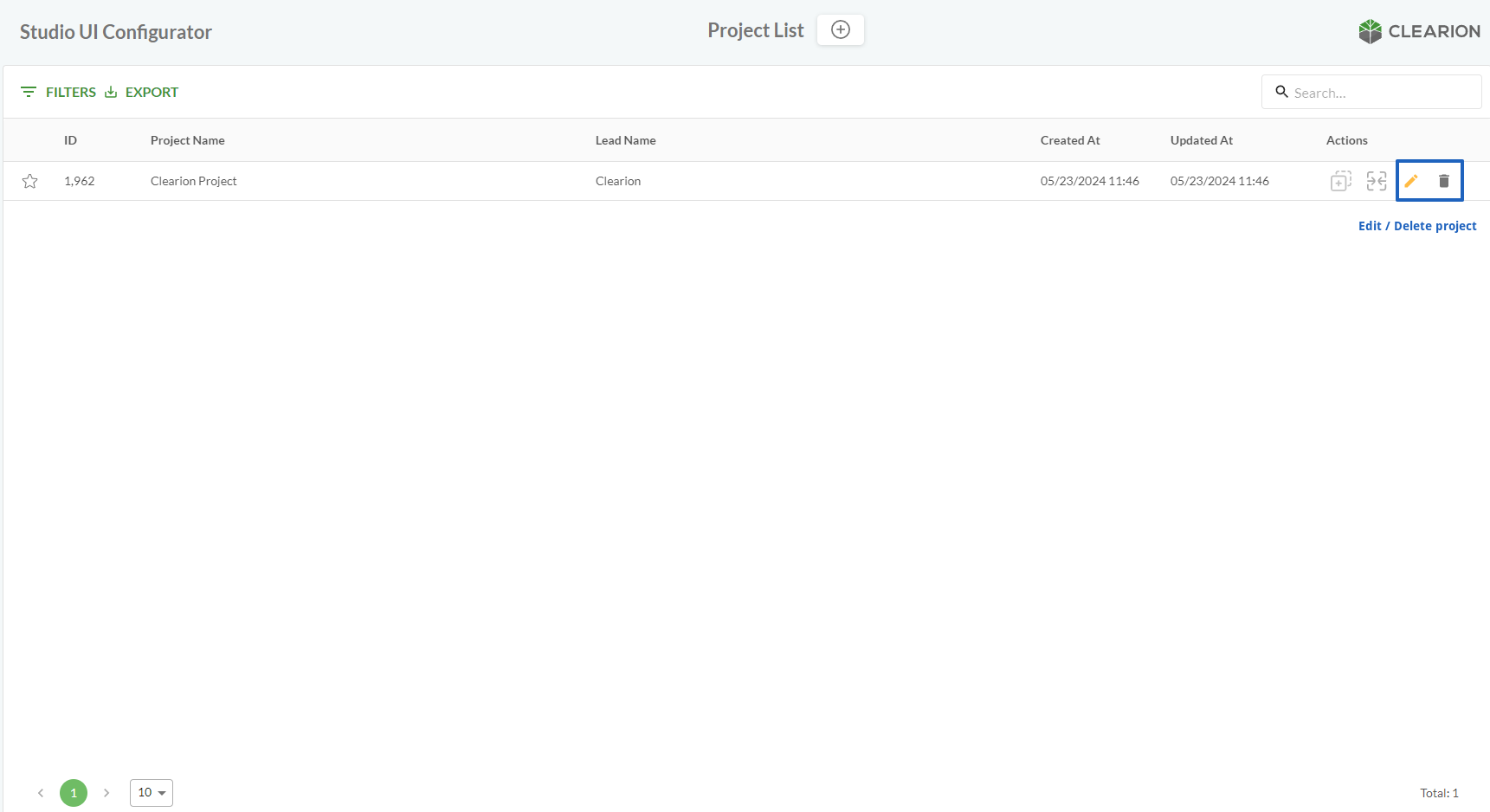
Edit project settings | | |
Delete project | |
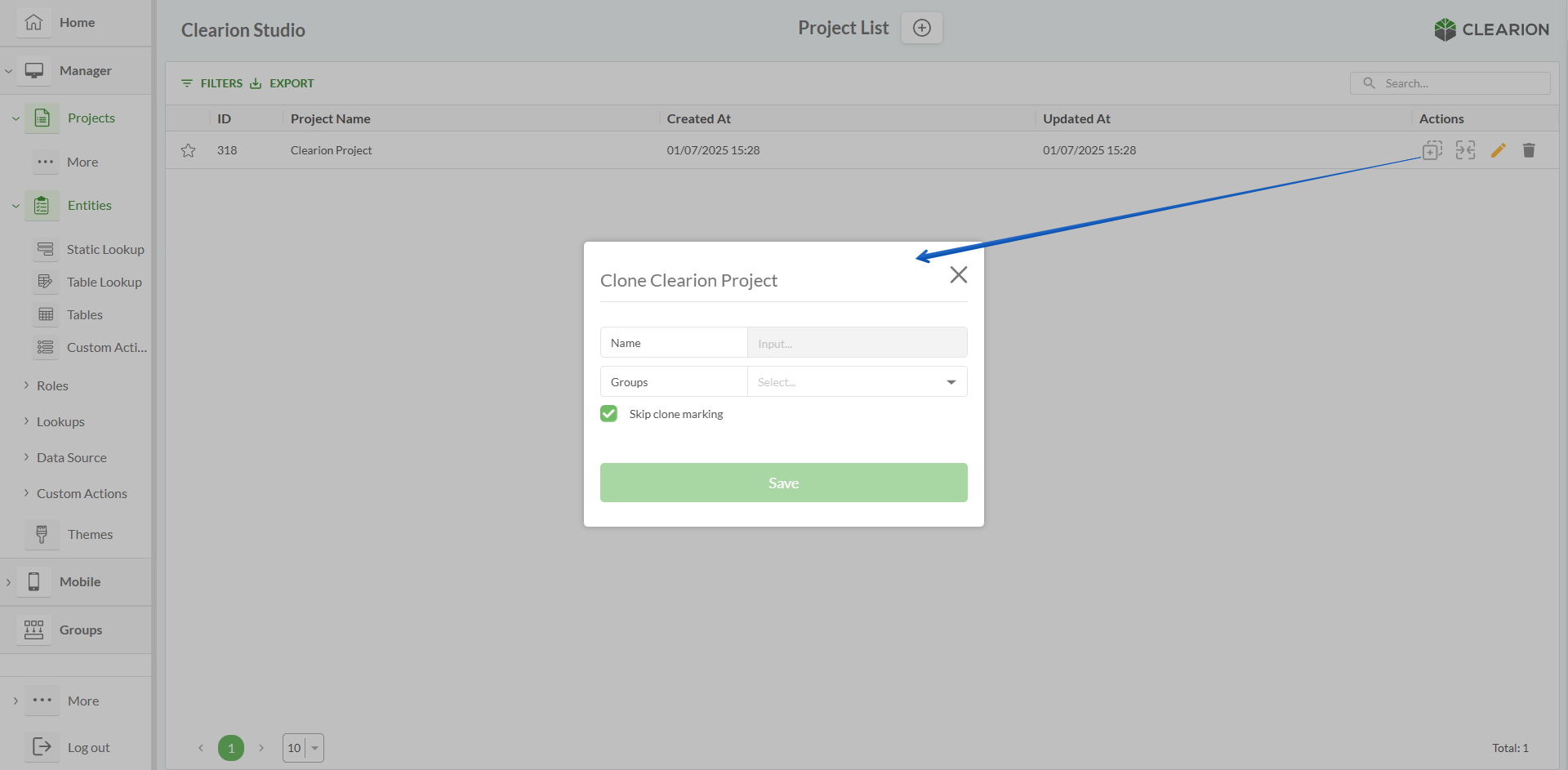
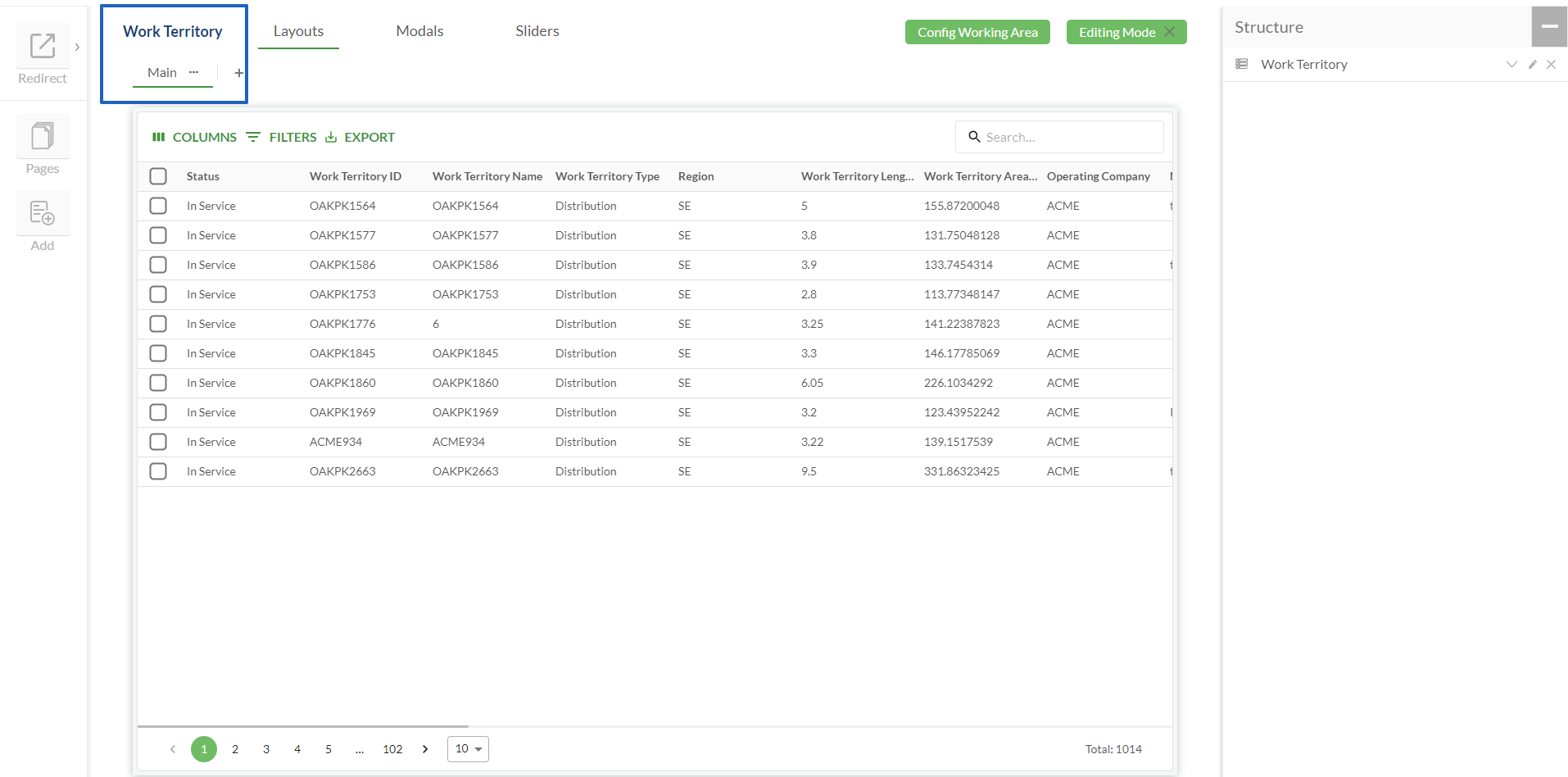
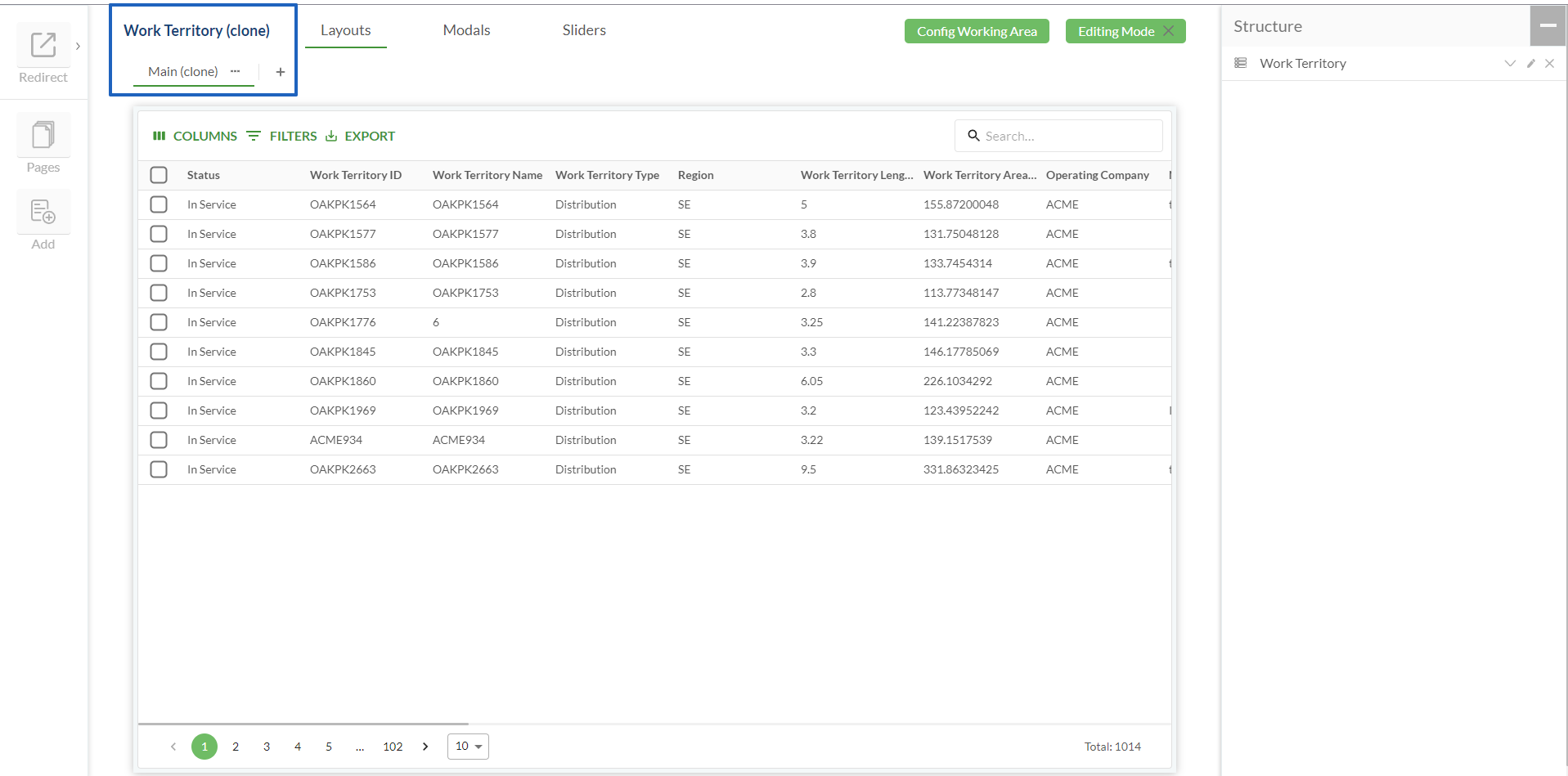
Clone project | Cloning creates a duplicate of an existing project Groups - the selected group will make all group’s entities available per project (data sources, lookups, themes, etc.) Cloning can be done with or without clone marking
| 
|
Merge project | The Project Merge feature combines configurations between two projects The original project configuration will be transferred to the recipient project The configuration that was the same in the original and recipient projects will remain the same If the recipient project configuration is ahead of the original project, it will be overwritten by the original project configuration during the merge If different Groups are applied to the original project and the recipient project, it is better to merge groups first, and then merge projects. This is important in cases when some new entities were added to the group applied to the original project. To make these entities available in the recipient project after the project merge, groups should be merged first.
| The original project configuration is transferred to the recipient project The original project configuration was combined with the recipient project configuration The recipient project configuration is overwritten by the original project configuration |
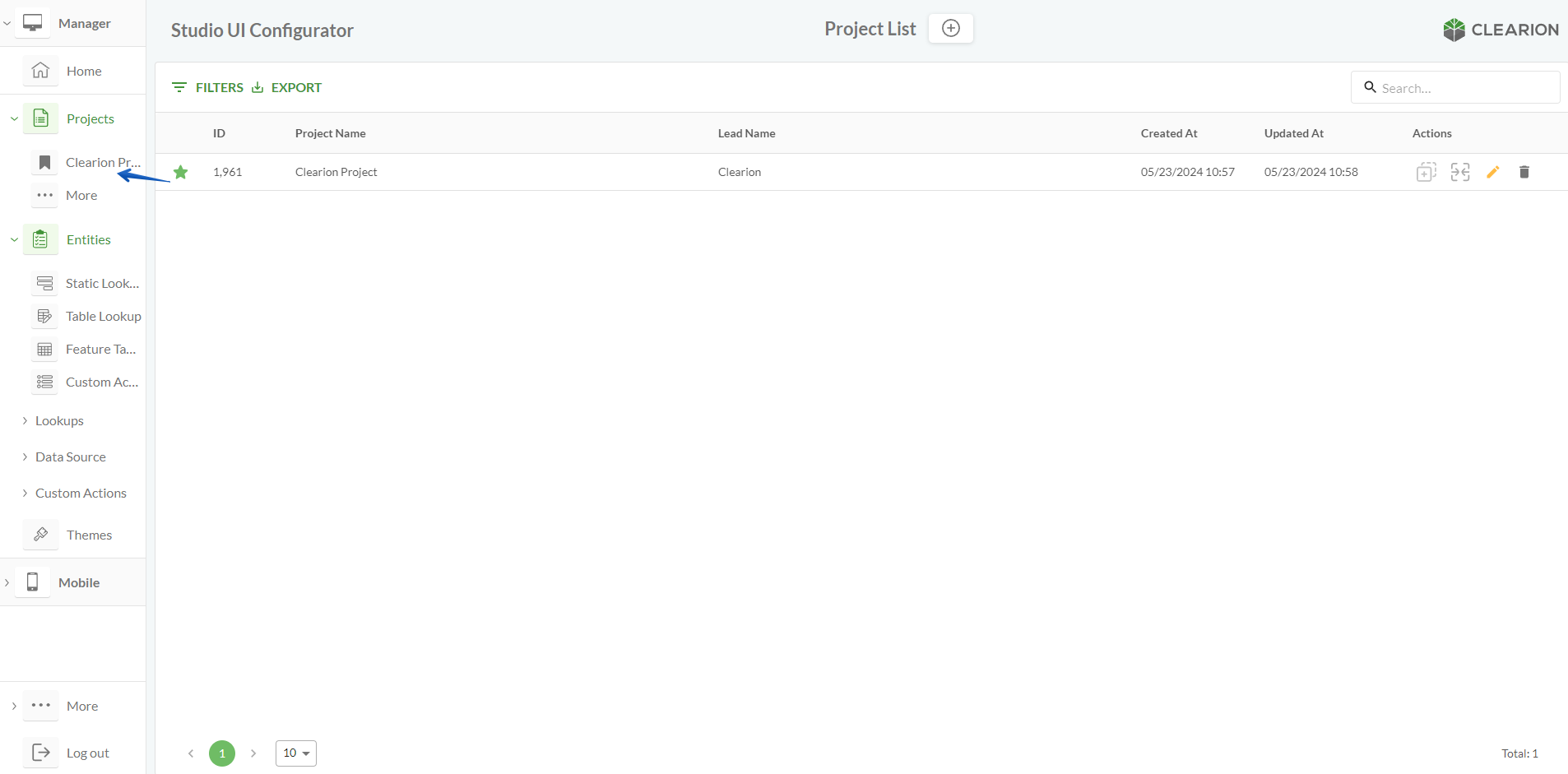
Open project | | |
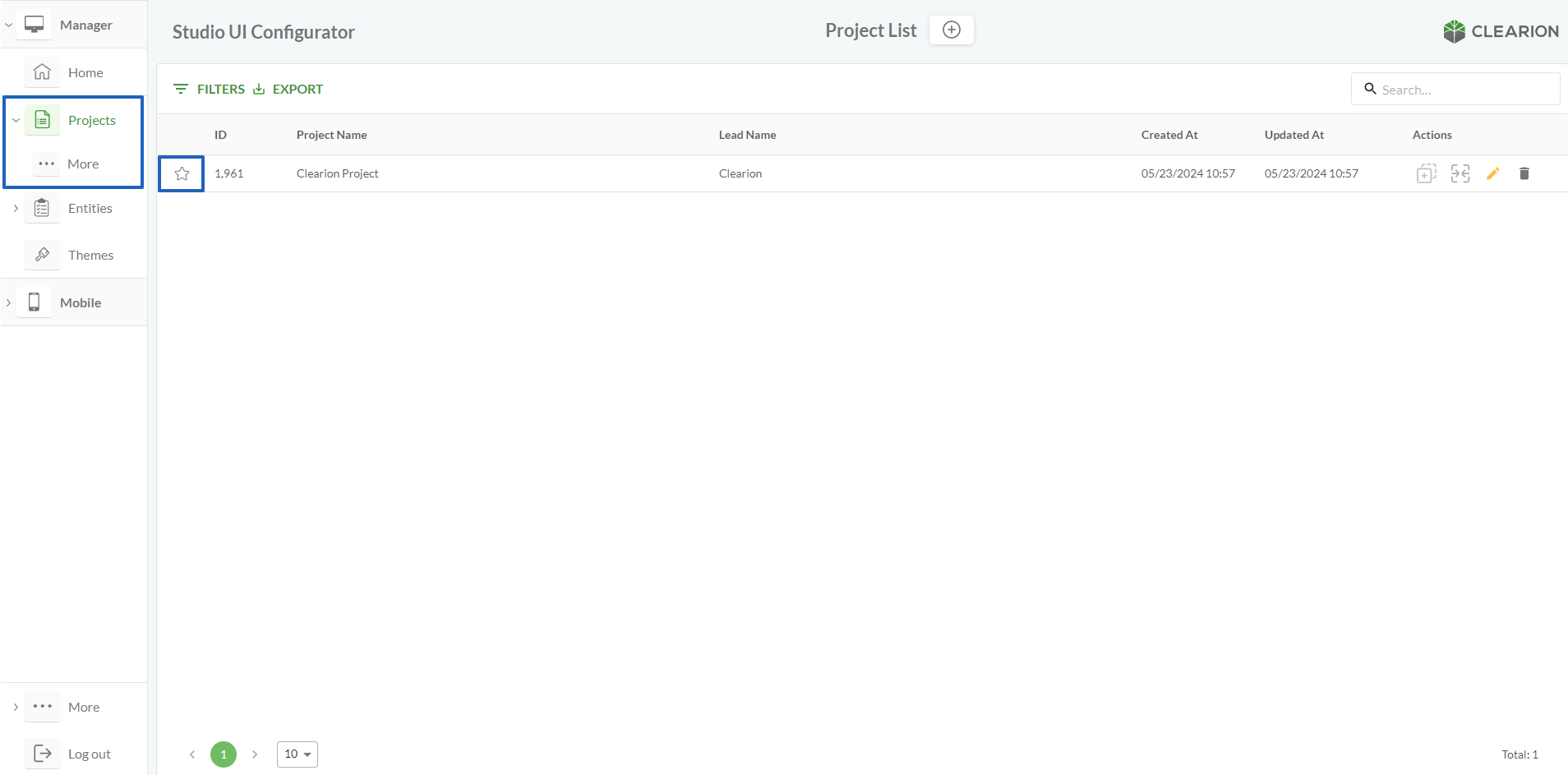
Add Project to favorites | | Star is clicked Star is not clicked |
.png "Project - page - open project(1).png")